Remote Assembly Guide

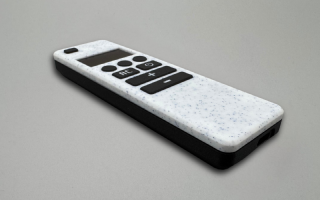
This guide explains how to assemble the Smart OLED Remote for Home Assistant step by step. It covers mounting the PCB, installing buttons and the OLED display, connecting components, and closing the 3D-printed case.


Smart OLED Remote Series


What You’ll Need

  • 3D-printed enclosure (front and back cover + button caps + battery divider)
  • Pre-soldered PCB with tactile switches and ESP32 board
  • Li-ion battery 603450
  • 3x M2.5×6 screws

Step-by-Step Assembly

Print the case. Make sure all printed parts are clean. Test-fit the clips and buttons before installing electronics. If any edges are rough, lightly sand them for smooth operation.

Insert the OLED display. Slide the display module into the front frame in 45 degree angle. Be careful here as display is quiet fragile and slot is really tight fit.

Install the buttons Insert the printed buttons caps into their respective holes from the outside. Check that they move freely but don’t fall out.

Place display in it’s final place. After placing all buttons into their proper slots, gently move the display into its final position. To do this, press it lightly from the edge and push it downward until it clicks securely into place.

Place OLED support. A small support structure is required to ensure the display remains securely in place and doesn’t shift if external pressure is applied to the front of the case.

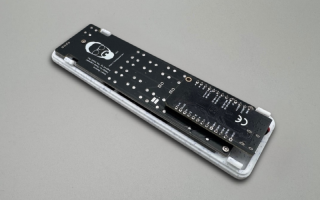
Mount the PCB and ESP32. Place the PCB into the lower half of the enclosure and secure it using three M2.5 screws. Once mounted, check that the POGO pins make firm spring contact with the PCB by visually inspecting them through the side gap.

Install the battery and divider plate Place the Li-ion battery into its compartment. You can secure it using double sided tape. Insert the divider plate to separate it from the electronics, ensuring protection from pressure or puncture.

Close the enclosure Align the clips of the back cover and press gently until all sides snap into place. No screws are needed — the design locks tightly with reinforced clips. The ESP32 board should align with the USB-C cutout.

Power and test Connect a USB-C cable or wake the device from battery power. The OLED should light up and display your Home Assistant data via ESPHome.

Tips

  • If the screen doesn’t light up, double-check SDA/SCL connections and OLED power polarity.
  • Don’t force the clips — if alignment feels off, reopen gently and adjust.
  • The case may feel tight at first but loosens slightly after a few openings.
  • Use low-temperature PLA or PETG for best strength and snap-fit flexibility.

Final Check

Once assembled, your remote should:

  • Power on correctly from the battery or USB-C
  • Display AC state and temperature on the OLED
  • Send commands to Home Assistant through ESPHome
  • Sit solidly in hand without any squeaky noise

What’s Next

Now that your remote is fully assembled, it’s time to bring it to life!
In the next step you’ll learn how to flash your LOLIN32 board, configure your display and buttons, and connect the remote to Home Assistant.

Continue to Part 4 – ESPHome Firmware →

PCB, OLED & Electronics

This article is part 2 of the Smart OLED Remote for Home Assistant series.

In this post, we’ll look closer at what makes the remote work — its ESP32 Lolin32 WROOM board, custom PCB pinout, voltage divider for battery measurement, and the SH1106 OLED display that brings everything to life.


Smart OLED Remote Series


The Core: WROOM Lolin32 Lite V1.0

At the heart of the remote is a Wemos Lolin32 development board based on the ESP32-WROOM-32 module.

It’s compact, easy to mount, and provides all the features needed for a low-power, Wi-Fi–connected handheld device. In this project, the Lolin32’s 3.3 V rail powers the OLED display and voltage divider.

The board’s built-in LiPo charger makes it ideal for portable use — just connect a small LiPo battery and the device can charge over USB.

PCB Pinout

The custom PCB connects several tactile switches to dedicated GPIO pins on the ESP32 for clean digital input detection.

Each button has one side connected to GND and the other routed to a GPIO pin with an internal pull-up enabled via ESPHome.

Schematic for pin connection in Lolin32 & Seeduino Xiao

Because the Seeduino Xiao has a limited number of available GPIO pins, not all switches on the remote can be used with that board. The Lolin WROOM board provides more flexibility.

In this design, two switches are used together to operate each of the long buttons (Temperature Up and Down). This approach minimizes wobbling when pressing the buttons and leaves the option to later redesign them as two independent buttons if additional features are needed.

Currently, the main functional buttons are those on the left side. Pressing the right side won’t trigger any action because those switches are connected to separate pins. To link both sides of each long button, the PCB includes jumpers that allow merging them:

  • Jumper 3: connects UP1 and UP2
  • Jumper 4: connects DOWN1 and DOWN2

Additionally:

  • Jumper 1 enables the voltage divider used for battery voltage measurement on the Seeduino (the Lolin already has this connected to GPIO 36).
  • Jumper 2 allows using the UP2 switch as an independent button.

Important: On the Seeduino, the voltage divider and UP2 switch share the same pin. Therefore, Jumpers 1 and 2 cannot be enabled at the same time — doing so could cause a short circuit.

Battery Voltage Sensing via Voltage Divider

To monitor the LiPo battery voltage, the PCB uses a voltage divider connected to the ESP32’s ADC pin (GPIO 36).

Since a single-cell LiPo typically ranges from 4.2 V (fully charged) down to 3.0 V (low) — higher than the ESP32’s safe ADC limit of 3.3 V — the divider scales the voltage down using two resistors: 6.8 kΩ (R1) and 10 kΩ (R2).

Vout = Vin * (R2 / (R1 + R2))

Vout = Vin * (10 / (6.8 + 10))
Vout ≈ Vin * 0.595

This means a 4.2 V battery will be measured as approximately 2.5 V at the ADC pin — well within the safe range for the ESP32.

Resistor color code (5-band):

  • 6.8 kΩ (1%) → blue-gray-black-brown-brown
  • 10 kΩ (1%) → brown-black-black-red-brown

These precision resistors ensure accurate, stable voltage readings and protect the ESP32 from excessive input voltage.

OLED Display (SH1106 1.3″)

The display used is a 1.3″ SH1106 128×64 OLED module connected over I²C. It’s similar to the more common SSD1306 but has a slightly larger addressable area and internal memory buffer.

Soldering components to PCB

For the Lolin board, first desolder the built-in battery connector and replace it with a Micro JST cable connector, as shown in the reference image. Make sure the cable is long enough to comfortably reach the battery compartment once assembled.

Next, mount the Lolin board upside down onto the PCB, following the orientation shown in the attached image.

Before soldering, carefully verify that all pin labels on the PCB and the Lolin board match to avoid incorrect connections or short circuits.

Solder tactile switches. Make sure that all tactile switches are properly soldered to PCB, and sharp legs are cut off.

Attach battery connector. On Lolin board remember to desolder battery connector, and solder instead of it JST 1.25mm female connector for battery, double check polarity with your battery!

Solder devboard to PCB. PCB is compatible with both ESP32-Lolin or Seeduino ESP32, you will find proper holes for soldering on PCB itself.

Soldered ESP32 board to PCB

Solder POGO pins to your OLED display. Be sure that your display pins orders is GND, VCC, SCL, SDA. Some models has switched VCC and GND but it can be changed by changing jumpers on display itself.

Power Management Notes

  • The Lolin32’s charging circuit manages the LiPo cell automatically.
  • You can connect the battery directly to the BAT and GND pads.
  • The 5 V USB input charges the battery and powers the device simultaneously.
  • The voltage divider is always connected, but the 100 kΩ values keep the quiescent draw negligible (< 20 µA).

What’s Next

Now that you understand how the electronics work, it’s time to bring it all together: Part 3 – Assembly Guide

Smart OLED Remote for Home Assistant

This post walks you through how the idea came to life, the hardware I used, how it integrates with Home Assistant, and what makes it flexible enough to control not just my air conditioners, but practically any smart device.


Smart OLED Remote Series


Have you ever wished you could control your air conditioner, lights, or even curtains with a single custom-made remote that looks sleek and modern – and shows everything on a tiny OLED screen?

That’s exactly what I set out to build – and after a few weeks of tinkering, soldering, and 3D printing, I now have a fully functional smart remote powered by ESPHome, a 1.3” SH1106 OLED display, and an ESP32 Lolin board neatly packed into a 3D-printed case.

The Inspiration

The inspiration for this project came from The Stock Pot, who originally designed a simple ESPHome-based remote for Home Assistant entities. His project worked beautifully – but it lacked one key feature: a screen.

Without a display, it was difficult to see the current AC state or verify which mode or fan speed was active.

That’s where my version takes the next step forward. By adding a 1.3” OLED display, it became possible not only to visualize the real AC state in real time, but also to control multiple devices with fewer physical buttons. The screen turns the remote from a single-purpose controller into a versatile smart interface for the entire home.

The Hardware

You can purchase the complete remote or one of the available kits from my Etsy store, or you can gather all the required parts yourself using the list below.

👉 Installation Guide

Inside the case, everything fits snugly: the ESP32 sits at the bottom, the OLED mounts flush on the front, and buttons line the side. A small Li-ion battery powers the unit, though it can also run directly over USB-C.

Case Design Improvements

The original case from The Stock Pot was a great starting point, but I wanted it to be sturdier, more secure, and easier to assemble.

I reinforced the snap-fit clips, making them significantly stronger so the case can be assembled and disassembled multiple times without cracking. The remote now closes using a pure click-on method – no screws needed – which gives it a clean, seamless look.

Another important addition is a divider plate that separates the battery compartment from the rest of the electronics. This plate helps protect the Li-ion battery from accidental puncture or pressure when pressing buttons or handling the device – a small but essential safety improvement.

ESPHome + Home Assistant Integration

The real magic comes from ESPHome.

I’ve written a custom YAML configuration that connects directly to Home Assistant’s native API. The OLED updates dynamically every time the AC state changes – whether from the mobile app, automation, or the remote itself.

The remote can:

  • Display the current AC mode (Cool, Dry, Fan, Heat, Auto)
  • Show fan speed, target temperature, and power state
  • Switch between multiple AC entities (great for multi-room setups)
  • Control lights, fans, or curtains by just changing the profile

All button actions are mapped to Home Assistant services, so reprogramming the remote is as simple as editing YAML.

A Universal Design

Although it started as an air conditioner controller, I quickly realized how universal the concept could be.

By changing just a few lines in the ESPHome config, I can control lights, fans, or even trigger automations like “Good Night” or “Open Curtains”.

The OLED layout is flexible enough to display relevant information for any entity type – brightness for lights, position for curtains, or on/off state for fans.

This versatility makes the device much more than just an AC remote – it’s a pocket-sized control hub for my entire smart home.

Challenges & Lessons Learned

Like every DIY project, this one came with a few hurdles:

  • Connecting the OLED display in limited space – fitting both the display and wiring inside the compact case was tricky, so I redesigned the PCB layout to optionally support pogo pin connections for a cleaner and more modular setup.
  • Designing a clear and readable UI – making the small OLED screen intuitive took some effort. I used Material Icons to represent AC states, fan modes, and temperatures, resulting in a clean and easily understandable interface.
  • Managing deep-sleep and wake-up behavior – to save battery life, the ESP32 automatically sleeps when idle and wakes instantly when a button is pressed.
  • Redesigning the case from scratch – I rebuilt the entire enclosure to integrate all required buttons, add proper screen mounts, and strengthen internal supports. The new case feels sturdy, fits together tightly, and doesn’t produce squeaky sounds when handled.

The most satisfying part was watching it all come together – the first time the OLED displayed live data from Home Assistant was a real “it works!” moment.

If you’re into DIY smart home projects, this one’s a great mix of hardware tinkering, firmware creativity, and design work – and the result is something genuinely useful every day.

Final Thoughts

This OLED remote started as an inspired continuation of The Stock Pot’s idea – and it evolved into one of my favorite smart home tools.

It proves that with an ESP32, a few buttons, and a small display, you can create devices that feel polished, personal, and deeply integrated into your Home Assistant ecosystem.

I’ll be sharing the full 3D printing files, ESPHome configuration, and wiring diagram soon – stay tuned!

Resources